Home / Home services and trades / SB-027
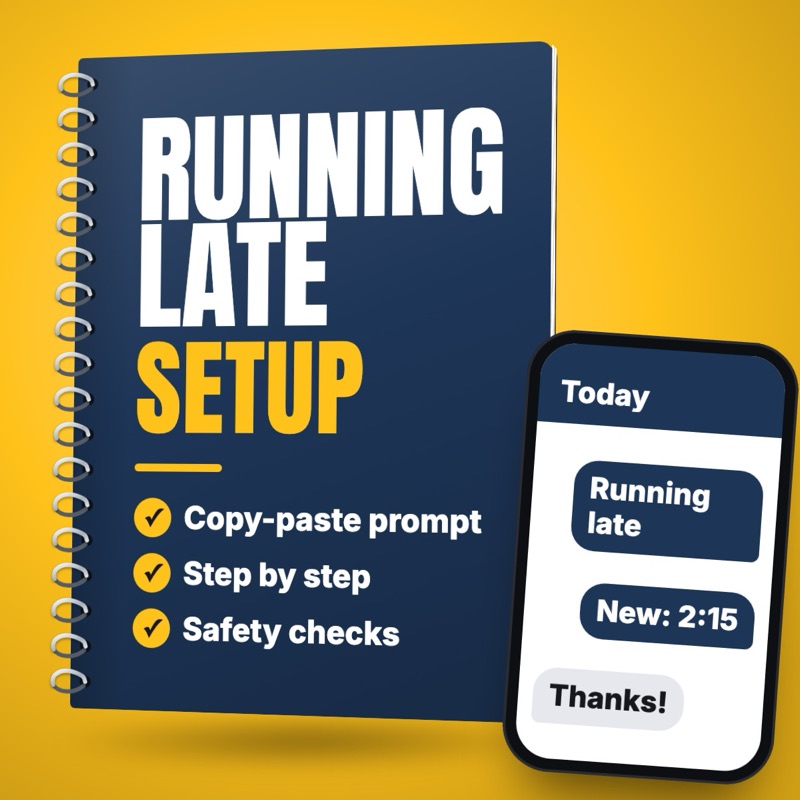
Text arrival windows, and a heads-up when a crew runs late
Draft the night-before arrival window text and a short running-late text from your schedule, so the office or tech can check and send them fast.
- Who it suits
- Plumbing, electrical, heating and cooling, and landscaping owners and dispatchers
- Time saved
- About 15 to 30 minutes a day of typing texts between jobs, plus fewer "where are you?" calls (estimate)
- Level
- Easy
- Updated
- Oct 26, 2026
Why this task
The first job ran long because the shutoff valve was seized, the tech is still in a crawlspace fighting a rusted fitting, and the 1:00 customer has taken the afternoon off to wait. Nobody texts her, so she calls the office twice, then leaves a one-star review about being stood up. An agent can draft the night-before window texts for the whole board in a minute, and turn "Mike, 45 minutes late" into a polite text the moment the office hears it. Someone in the office reads each one before it goes out.
You help the office at [BUSINESS NAME], a [PLUMBING, ELECTRICAL, HEATING AND COOLING OR LANDSCAPING] company in [TOWN], text customers about arrival times.

Our texting rules (follow exactly):
[PASTE WINDOW LENGTH, WHEN TO SEND A RUNNING-LATE TEXT, HOW TO RESCHEDULE]
Opt-out line, if our texting tool needs one: [FOR EXAMPLE: REPLY STOP TO OPT OUT]
Voice: [FOR EXAMPLE: FRIENDLY, BRIEF, PLAIN WORDS]

PART 1: Arrival window texts for tomorrow.
Tomorrow's jobs (one per line):
[CUSTOMER FIRST NAME | JOB TYPE | BOOKED WINDOW | TECH FIRST NAME | TEXT CONSENT YES OR NO]

For each job:
1. Skip anyone whose text consent is not YES and list them separately so the office can call them.
2. Write one text under 250 characters with their first name, the day, the booked window exactly as given, the tech's first name, and how to reschedule.
3. Add the opt-out line where our rules need it.

PART 2: Running-late text (fill in when it happens).
Job: [CUSTOMER FIRST NAME | BOOKED WINDOW | TECH FIRST NAME]
New estimated arrival: [TIME THE TECH GAVE]
Reason we can share: [FOR EXAMPLE: THE JOB BEFORE TOOK LONGER THAN PLANNED]

Write one text under 250 characters that says sorry, gives the new estimate exactly as given, and offers to reschedule.

Rules for both parts: do not invent a time, a tech or a reason. Do not promise a price, a discount or a finish time. Do not mention other customers. If something is missing, write [CHECK].

Return the drafts in a list. Do not send anything.
Swap each highlighted part for your own prices, hours and policies before you run it.
Steps
- Write your texting rules in a shared document: how wide your arrival windows are, how late a crew can run before you text, the opt-out wording your texting tool needs, and how a customer can reschedule.
- Make sure each job in your scheduling software shows the customer's first name, the booked window, the tech's first name and whether the customer agreed to receive texts.
- The afternoon before, copy tomorrow's jobs into Part 1 of the prompt below and ask for the arrival window texts.
- Check each draft against the schedule: right name, right day, right window, right tech. Remove any customer without text consent and call them instead.
- Send the approved texts from your texting tool. Nothing goes out until someone in the office has read it.
- During the day, when a tech says they are running late, paste the job and the new estimate into the second part of the prompt and send the running-late text after checking it.
- If a job has to move to another day, call the customer yourself. Use the AI only to draft the follow-up text confirming what you agreed.
What you get
A list of arrival window texts for tomorrow, one per customer with consent, each naming the day, window and tech exactly as scheduled, plus a separate call list for customers without text consent. When a crew runs late, one short apology text with the tech's new estimate and an easy way to reschedule.
What could go wrong, and what to double-check
A text goes to a customer who never agreed to receive texts.
CheckThe prompt drops anyone without recorded consent, and the office checks consent in the texting tool before sending.
A draft shows the wrong window or tech and the customer waits at the wrong time.
CheckA person checks each text against the schedule before sending.
A running-late text promises a time the tech cannot meet.
CheckThe text uses only the estimate the tech gave, and the office checks with the tech before sending a second delay.
The text shares too much, like another customer's problem.
CheckThe prompt bans mentioning other customers, and the office reads every line.
Customer names and phone numbers are pasted into tools carelessly.
CheckUse only tools your company has approved, and paste first names and windows, never full customer files or addresses.
Related setups

Get photos and job details before you drive out to quote
Turn a new job request into a short message asking for photos and details, then a one-page job sheet the owner can quote from or book a visit.

Explain a repair estimate in plain words with good, better, best options
Rewrite your own repair estimate as a plain explanation with good, better and best options, using only your prices and warranty terms.
Turn a missed-call voicemail into a job ticket and a callback text
Turn each missed-call voicemail transcript into a filled-in job ticket and a short callback text for the owner to check and send.